
Dashboard
The eCLAWs Dashboard
The eCLAWs dashboard contains information about contracts related to you, as well as the overall view of contracts in workflow for the University.
Logging in to eCLAWs
- Log into the PRODUCTION environment with your My Northeastern credentials:

Review the Dashboard
- Once you are logged into eCLAWs, select the role of eCLAWs Submitter from the Roles Dropdown Menu in the top right corner:

- The Dashboard will be presented to you; there are several ‘widgets’ shown:
- “My Agreements and Contracts” shows a snapshot of contracts related to you, in process, approved, and closed; To see “at a glance” the same but for the entire University, review the widget “University Agreements & Contracts:”


To view the details of your related contracts, select the “View all “ link.
- You can see “at a glance” where all of your contracts are in the workflow by reviewing the “Where are my agreements & contracts in process?” widget, as well as what is within the University queue:


- Search eCLAWs Records: allows you to search the system for a summary view of eCLAWs records. You can perform a basic search right in the search widget, or a more advanced search by selecting the “Search “ link and inserting search parameters:

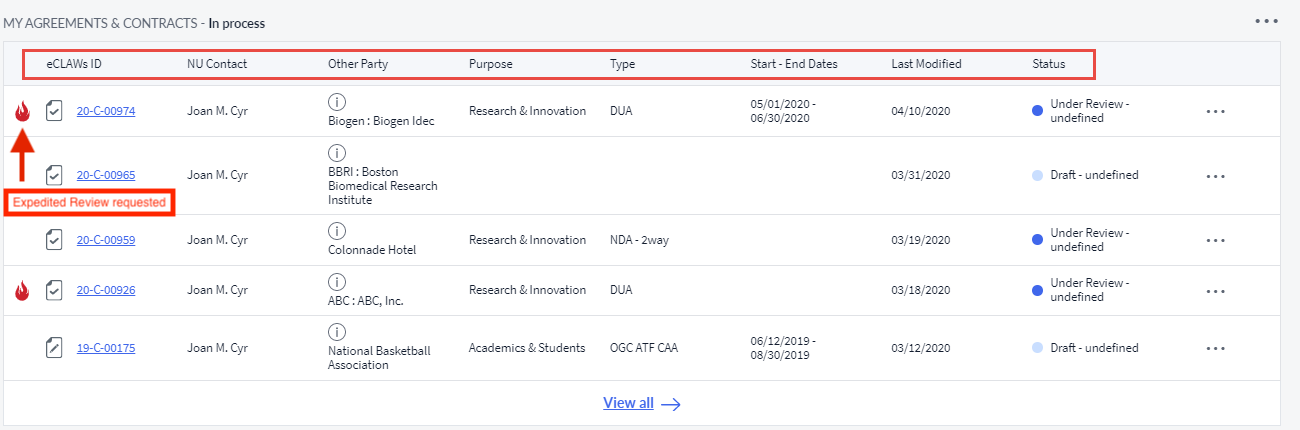
- “My Agreements & Contracts – In process” widget shows the list of contracts currently in workflow, in the order of ‘Last Modified’ date at the top; To view the details of your related contracts, select the “View all “ link.

- Basic information about the contract is shown, including information in the “Other Party” “i” as a tooltip; select the “i” to see a pop-out window revealing a brief explanation contained in the contract record. Select the eCLAWs ID link to open the record to review.
- “My Agreements & Contracts – Approved w/current or future term/date” widget shows the list of contracts that have completed in workflow, with the latest at the top; To view the details of your related contracts, select the “View all “ link.
- “My Agreements & Contracts – Closed” widget shows the list of contracts that are closed, with the latest at the top; To view the details of your related contracts, select the “View all “ link.

- “All of my Active Consults & Information Requests” widget shows the list of chat conversations in which you are involved, with the latest at the top; To view the details of your related Consults & Information Requests, select the “View all “ link.
Last Updated on October 13, 2026